SpecSnap: Save Any Product Page as a PDF — Free Chrome Extension (AI-Agent Ready)
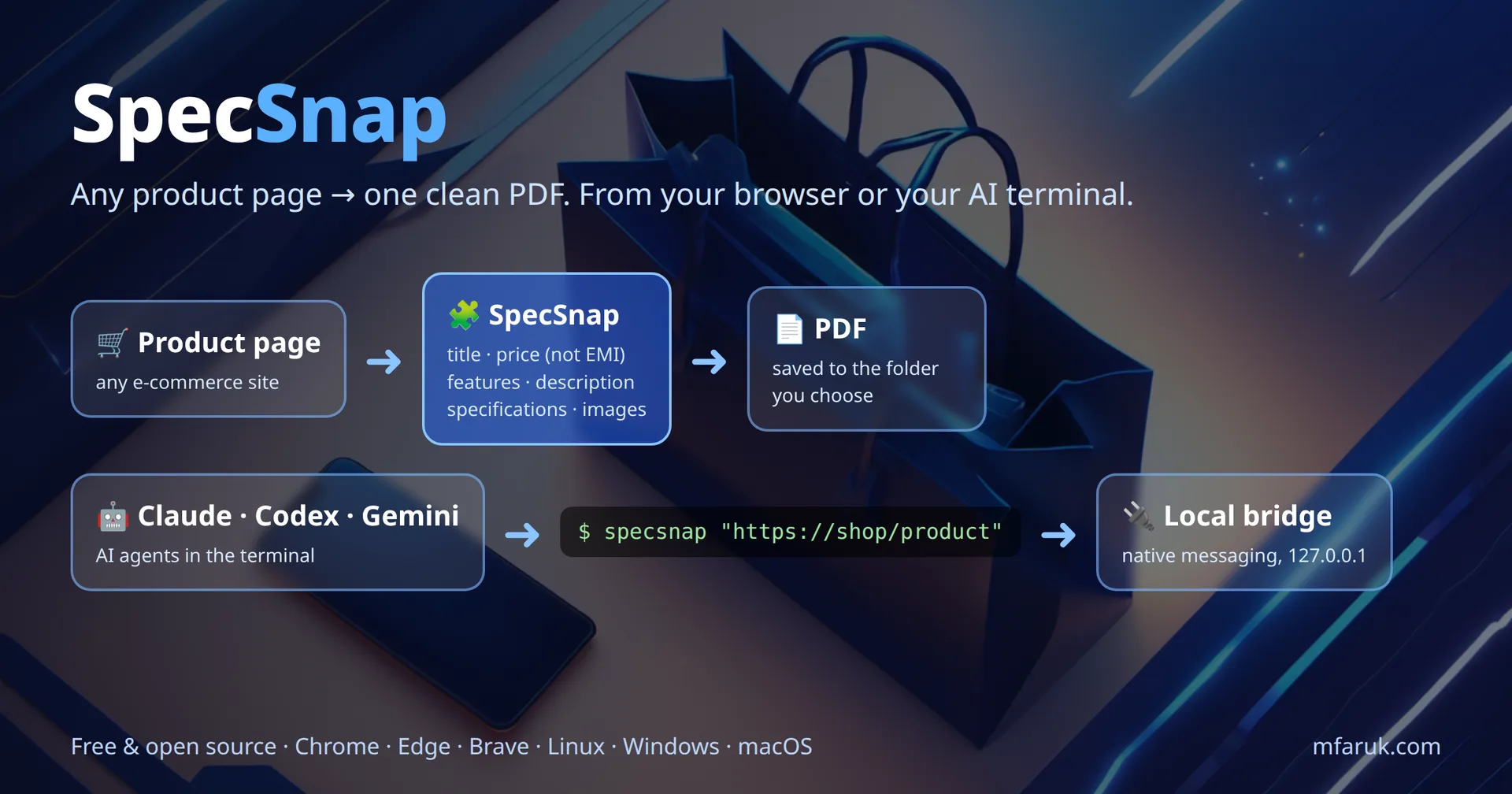
SpecSnap is a free, open-source Chrome extension that saves any e-commerce product page as a clean PDF (title, real price, features, description, specifications and images) and lets AI agents like Claude Code, Codex and Gemini CLI do it from the terminal.
Comparing products online usually means twenty open tabs, screenshots that cut off the specification table, and a price you can't remember: was it the real price or the EMI figure? I wanted one button that does it properly: save this product page as a clean PDF, in a folder I choose.
So I built SpecSnap, a free, open-source Chrome extension that turns any e-commerce product page into a PDF. It captures the title, the real selling price, features, description, specifications and product images. It also includes a small terminal bridge, so AI agents like Claude Code, Codex and Gemini CLI can capture product pages too.
👉 Download SpecSnap free on GitHub: github.com/mmhfarooque/specsnap
What is SpecSnap?
SpecSnap is a product page to PDF Chrome extension. Open any product, click the SpecSnap icon, check what it found in the side panel, and press Save PDF. You get a tidy, searchable document you can archive, share with a client, attach to a quotation or use for price comparison later, even after the shop changes or removes the listing.
What the PDF includes
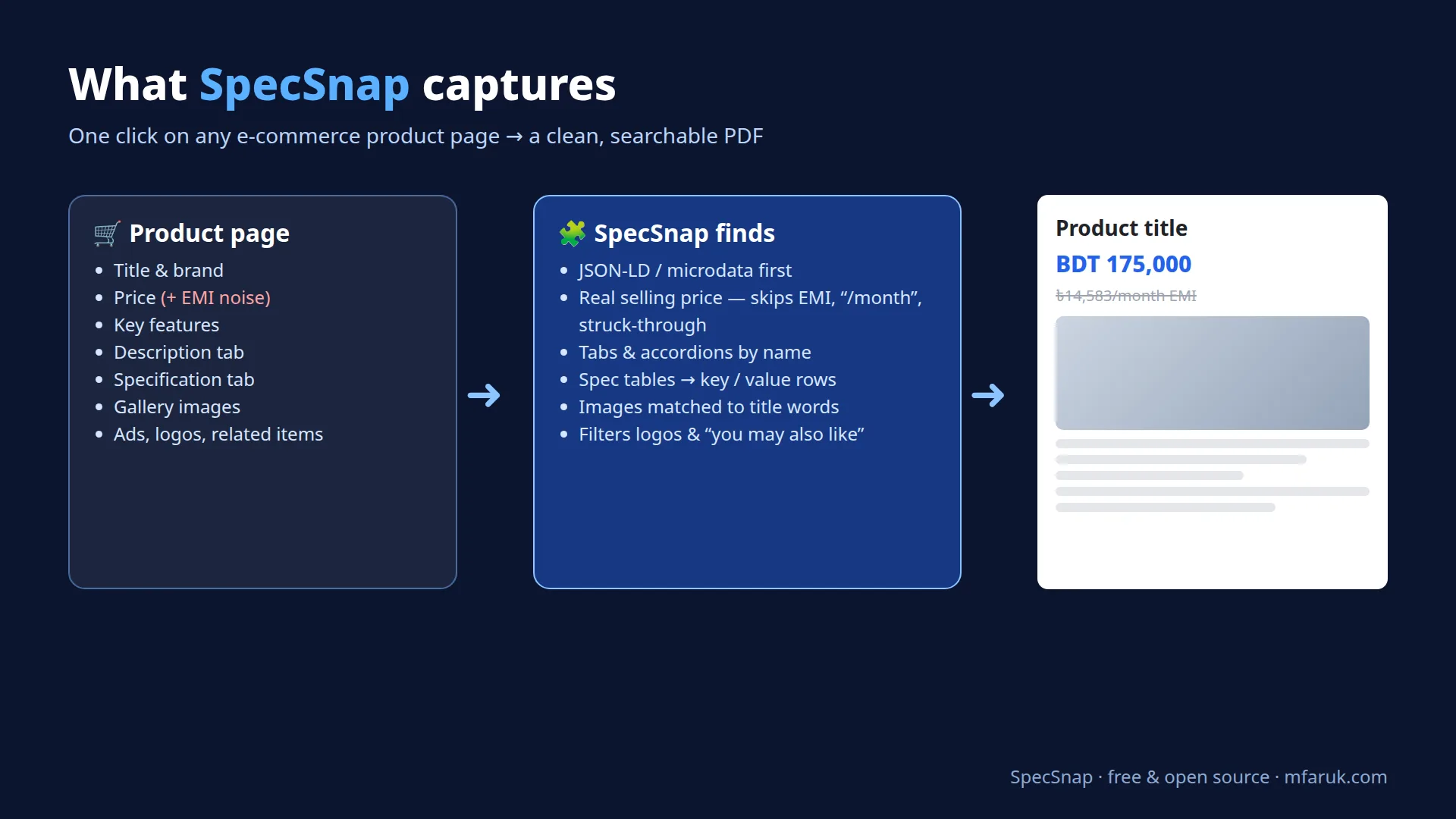
- Product title, from the page's structured data or its main heading.
- Real price: the actual selling price. EMI, "per month", instalment and struck-through "was" prices are ignored.
- Key features: the bullet list most shops show near the price.
- Full description, even when it sits in a hidden tab.
- Specifications as a clean two-column table, grouped the way the shop groups them (Display, Memory, Ports…).
- Product images, exactly as the page shows them, and never stretched beyond their real size in the PDF (blown-up "hi-res" copies only look blurry). Logos, payment icons and related products are filtered out.
- A source link and capture date on every PDF, plus page numbers.
Before saving you can edit the title or price and untick any section or image. The PDF is named after the product title. You choose where it goes: Save PDF sends it to your default location (a folder you pick once, a sub-folder of Downloads, or a "Save As" dialog every time), and Save as… lets you pick any folder and file name for just this one PDF. Click the "Saving to…" line at the bottom of the panel to change the default.
How it works on any e-commerce website
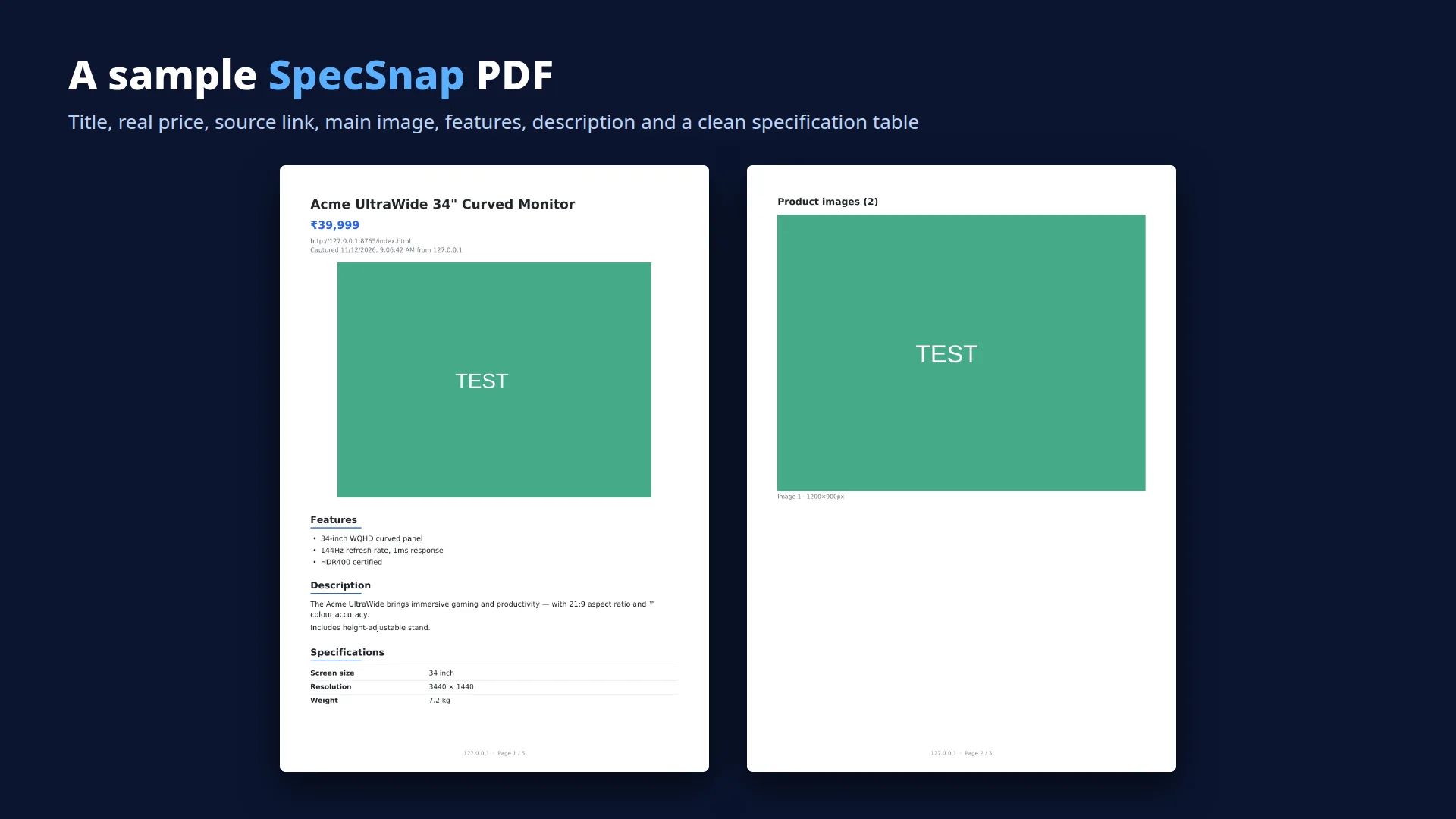
There is no list of supported shops and no per-site rules. SpecSnap reads the page the way a careful person would:
- Structured data first. Most online stores embed JSON-LD or microdata
Productinformation for Google (name, price, images, brand, SKU). SpecSnap uses it when it's there. - Headings, tabs and accordions next. It looks for sections named Description, Features, Key Features, Specification, Details, Highlights, Overview, About this item or In the box, and follows tab buttons to the right panel.
- Images by evidence. Each image is scored by how many words of the product title appear in its alt text or file name, whether it sits in the product gallery, and its size.
I tested it on a Bangladeshi electronics shop, a Shopify store and others. On a 55-inch interactive flat panel page it pulled the five key features, the full description, a 40-row specification table and the correct BDT 175,000 price, not the monthly EMI amount shown right below it.
Let AI agents save product pages as PDF from the terminal
I use AI coding agents in the terminal every day: Claude Code, Codex and Gemini CLI. They reason well, but scraping modern online shops is hard for them. Pages are rendered with JavaScript, protected against bots, and hidden behind cookie banners.
SpecSnap solves this with a small terminal bridge. Your AI agent, or any script, runs one command and the request goes through your real browser, so the page renders exactly as you see it:
specsnap --status                                   # is the browser connected?
specsnap "https://shop.example.com/product/123"     # saves the PDF, prints its path
specsnap "https://shop.example.com/product/123" --extract   # JSON: title, price, sections, images
specsnap --current                                  # capture the tab you are looking at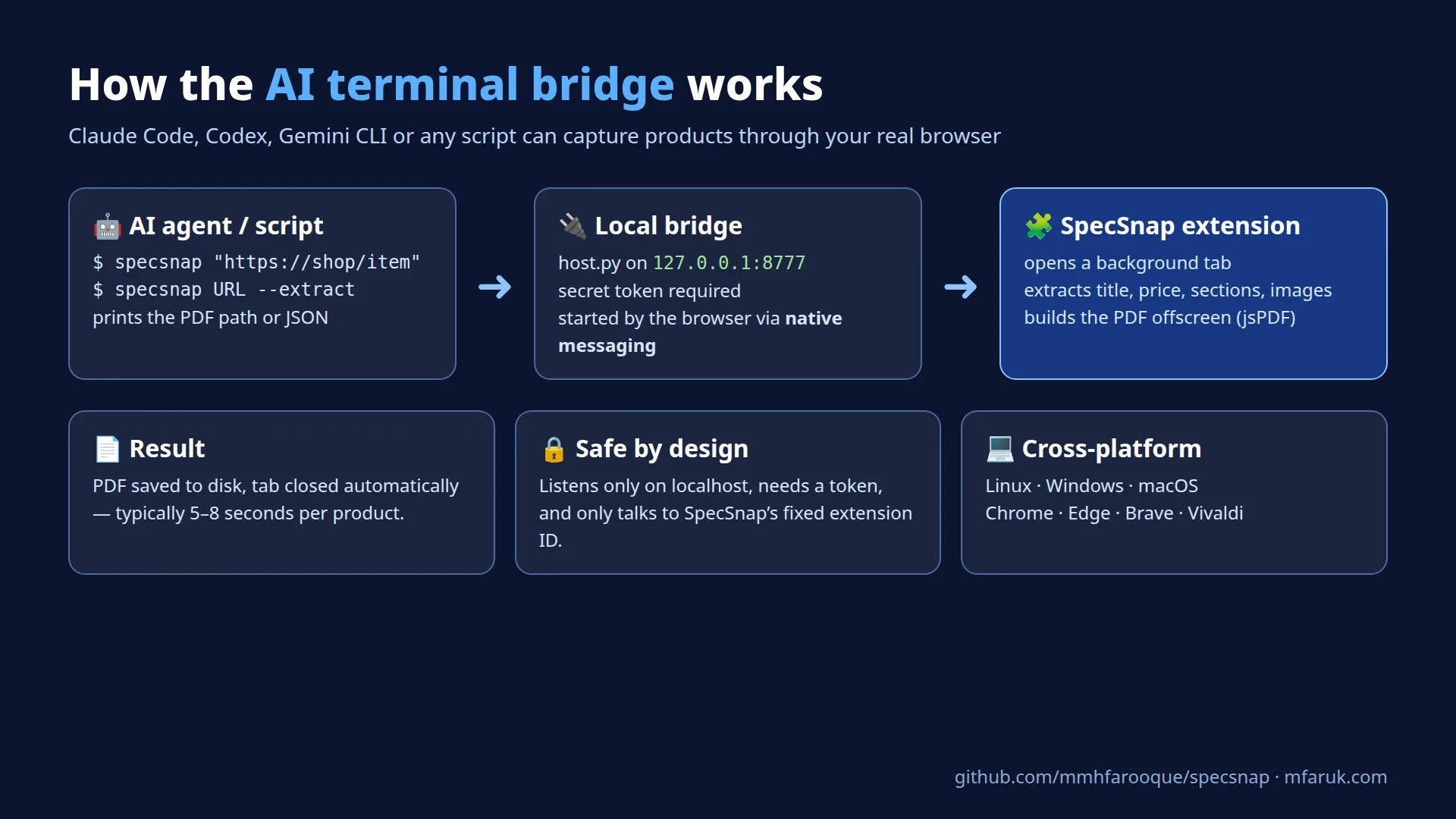
Why it is safe
- The bridge only listens on
127.0.0.1(your own computer) and requires a secret token. - The browser starts it through native messaging, the official way for an extension to talk to a local program, and it only accepts SpecSnap's fixed extension ID.
- The page opens in a background tab that closes itself. A capture usually takes 5–8 seconds.
The repository includes an AI_USAGE.md file you can hand to your agent, so it knows exactly how to call SpecSnap and read the JSON result.
Using SpecSnap with Codex CLI (sandbox fix)
Claude Code could call specsnap straight away. Codex CLI could not: every call failed with urlopen error [Errno 1] Operation not permitted, even though the same command worked in my own terminal. Telling Codex "allow it" in the chat does nothing, because its sandbox is set in a config file, not in the conversation.
The reason is the Codex sandbox. Codex blocks network access for the commands it runs, including 127.0.0.1. On my PC it had also started in read-only mode, because I launched it from my home folder rather than a trusted project. In read-only mode the network stays off whatever else you set. To fix it, add these lines to ~/.codex/config.toml. The first line must go at the top of the file, before any [section]:
sandbox_mode = "workspace-write"
[sandbox_workspace_write]
network_access = true
Then fully restart Codex. Closing the window is not enough: Codex keeps a background server running, and it holds on to the old settings. Quit Codex, run pkill -f 'codex app-server', and start codex again. After that, specsnap --status works inside Codex.
Know what you are allowing. With these settings, Codex can use the network for any command, not only SpecSnap, and it can edit files in the folder you start it from without asking. Start Codex in a project folder, not your home folder, and remove the lines when you no longer need them. If you would rather not change the sandbox at all, let Codex print the specsnap command and run it yourself.
Works on Linux, Windows and macOS
I built SpecSnap on openSUSE Linux, but the Chrome extension itself is universal. The same folder loads in Google Chrome, Microsoft Edge, Brave, Vivaldi and Chromium on any Linux distribution, Windows and macOS. Only the optional terminal bridge needs a one-time installer for your operating system:
| Operating system | Install the terminal bridge |
|---|---|
| Linux (any distro) / macOS | bash bridge/install.sh |
| Windows 10 / 11 | powershell -ExecutionPolicy Bypass -File bridge\install.ps1 |
One caveat: Snap-packaged Chromium on Ubuntu and Flatpak browsers sandbox native messaging. The extension still works there; for the terminal bridge, use the regular .deb/.rpm build of Chrome, Edge or Brave.
How to install SpecSnap (1 minute)
- Download the project from GitHub (Code → Download ZIP) and unzip it.
- Open
chrome://extensions(Edge:edge://extensions) and switch on Developer mode. - Click Load unpacked and select the SpecSnap folder.
- Pin SpecSnap, open any product page and click the icon. Use ⚙ to choose where PDFs are saved.
Frequently asked questions
How do I save a product page as a PDF in Chrome?
Chrome's built-in "Print → Save as PDF" captures the whole page, including menus, ads and cut-off tabs. SpecSnap saves only the product information (title, price, features, description, specifications and images) as a clean, readable PDF.
Does SpecSnap work with Amazon, Shopify, WooCommerce and Daraz-style shops?
It is designed to work on any e-commerce site without per-site setup, because it reads standard structured data and common section names. Results depend on how each shop builds its pages; you can always edit or untick items before saving.
Does it get the real price or the EMI price?
The real selling price. Prices labelled EMI, per month, instalment or financing, and crossed-out "was" prices, are skipped.
Can Claude Code, Codex or Gemini CLI use SpecSnap?
Yes. After installing the terminal bridge, any AI agent that can run shell commands can call specsnap URL to get a PDF, or specsnap URL --extract to get structured JSON. Codex CLI needs one sandbox setting first (see "Using SpecSnap with Codex CLI" above).
Is SpecSnap free?
Yes. It is free and open source under the MIT license. Use it, fork it and improve it.
Does SpecSnap send my data anywhere?
No. Everything runs in your browser and on your own computer. There is no account, no server and no tracking.
Free and open source
SpecSnap is MIT-licensed and available at github.com/mmhfarooque/specsnap. Pull requests are welcome, especially support for tricky shop layouts or a font for Bengali text. Please use it responsibly: it's built for personal research, price comparison and record-keeping, and you should respect each website's terms of use.
If SpecSnap saves you time, I'd love to hear about it, and a link back to mfaruk.com is always appreciated.